How to Recover Username and Hostname from SSH Keys
2026-03-17 · 2 min read
Figure 1: Recover SSH Username and Hostname
Description
When working on Capture The Flag challenges on platforms like Hack The Box, TryHackMe, or Root Me, you may encounter an SSH public key that does not include a username or hostname.
Even if you have the corresponding private key, identifying the associated user or system can be unclear at first.
For example:
ssh-ed25519 AAAAC3NzaC1lZDI1NTE5AAAAIG5IhBqlcagIc3dpzCTcNKD1g+vwuKTK0MdHUV5LAoHmA common approach is to brute force usernames or enumerate web applications to discover valid accounts. In most cases, this is inefficient and unnecessary.
If you already have the private key, there is a much simpler method.
Step 1: (Optional) Create a Test SSH Key
To understand how this works, you can generate a test key pair:
ssh-keygen -f tutorial_keyThis creates:
- tutorial_key (private key)
- tutorial_key.pub (public key)
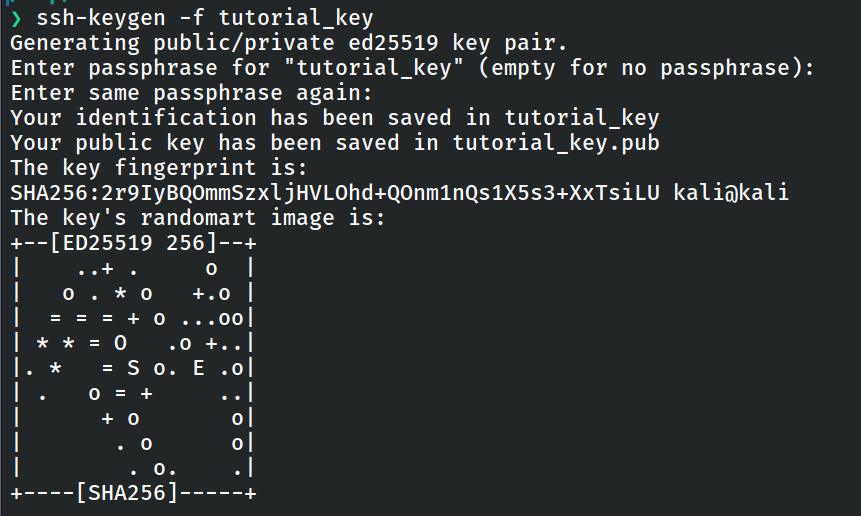
Figure 2: Creating a test ssh key
Step 2: Inspect the Private Key
Verify that the private key is valid and readable:
ssh-keygen -l -f tutorial_keyThis prints the fingerprint without modifying the key.

Figure 3: Printing fingerprint
Step 3: Derive the Public Key
Regenerate the public key from the private key:
ssh-keygen -y -f tutorial_keyThis outputs the full public key and may include the missing comment field that contains username and hostname.

Figure 4: Recovring username and hostname
Why This Works
SSH public keys can include an optional comment at the end, typically in this format:
user@hostnameIf the original public key was stripped of this information, regenerating it from the private key can restore it.
This approach saves time and avoids unnecessary brute force or enumeration during CTF challenges.