How to Decode Navicat Stored Passwords: A Step-by-Step Guide
2026-03-01 · 2 min read
Figure 1: Navicat Password Recovery Tutorial
Description
Navicat is a database management tool that allows you to connect to and manage databases like MySQL, PostgreSQL, SQL Server, and others through a graphical interface.
Navicat stores saved database connection passwords in an encoded format inside its connection files. This means the password is not shown in plain text. In this guide, you will learn how to locate the encoded password and decode it to recover the original database credential.
Download Navicat
Get the free trial version from it's official site.
Link: https://www.navicat.com/en/download/navicat-premium
Recovering Navicat Connection Passwords
We will start by creating a test connection in Navicat to generate the encrypted password.
Step 1: Creating a Test Connection
Click on "Connection" or "File -> New Connection" or right click on the left panel and click on New Connection.
Selection a connection type. For the demo, we will select "MySQL".
Click on Next button
Set:
- Connection Name: Test Connection
- Host: localhost
- Port: 3306
- Username: root
- Password: For the demo, set the password as demopassword.
Click on "OK" to save the connection.
Observe the connection created at "My Connections" section.
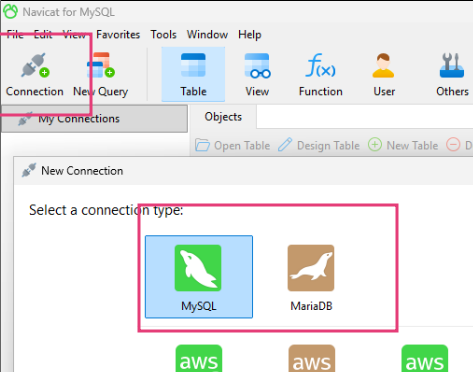
Figure 2: Setting a new connection
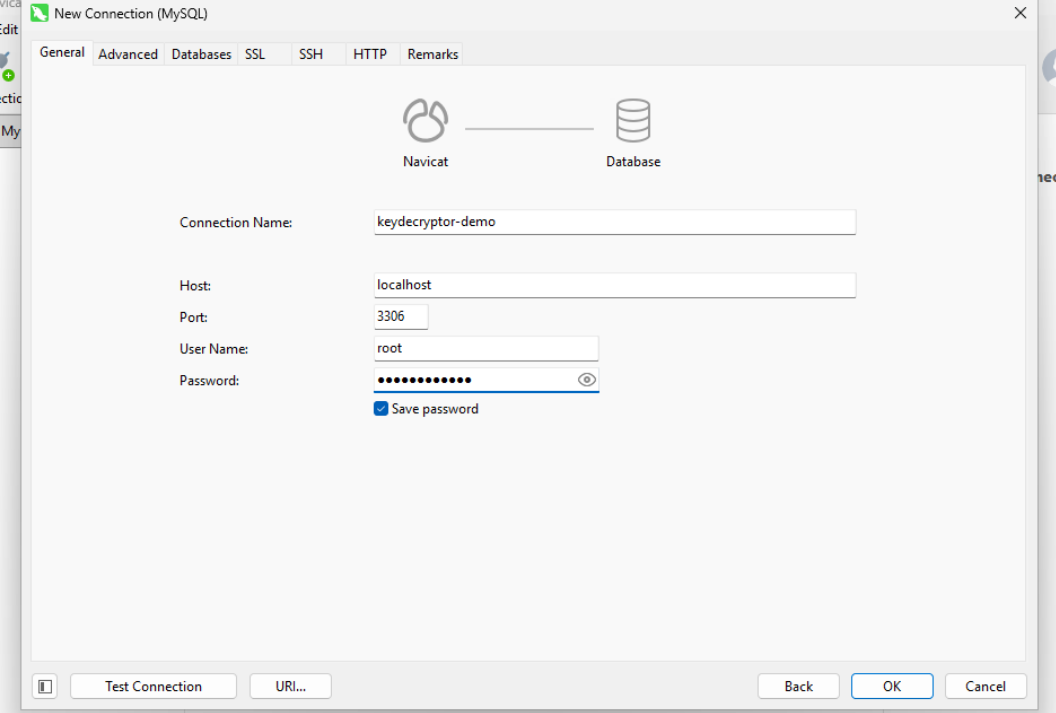
Figure 3: Setting password
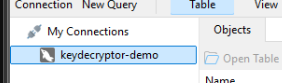
Figure 4: My Connections
We have sucessfully created a new connection type.
Step 2: Exporting the Connections File
After creating a connection, we can export the connections file. This file contains all the database settings, encoded passwords, etc.
To export the connections file, follow these steps:
- Click on "File" in the top menu.
- Then click on the "Export Connections..." option.
- Select the connections you want to export and provide a file name.
- Make Sure to check the "Export Passwords" option.
- Finally Click on "OK".
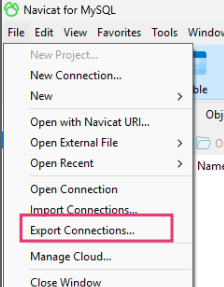
Figure 5: Selecting Export Connections Menu
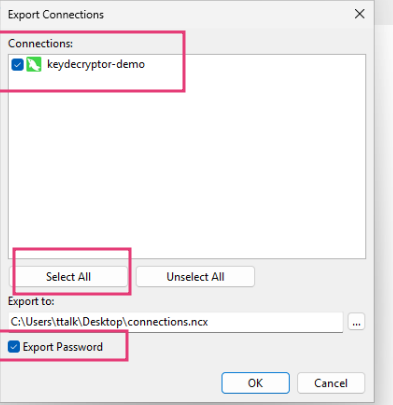
Figure 6: Exporting the connection
Open the saved connection file from the saved location. Search for the keyword "password".
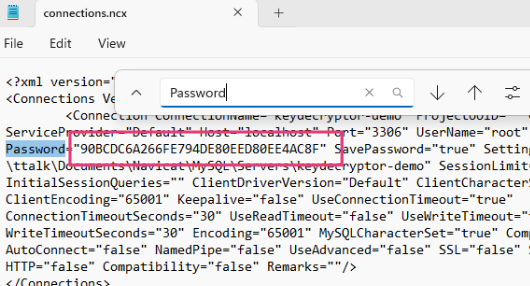
Figure 7: Searching for a password from the exported connection file
The encoded password will be located there. i.e. 90BCDC6A266FE794DE80EED80EE4AC8F
Step 3: Online tool for Decoding Navicat Passwords
Use the online navicat password decoder tool provided by KeyDecryptor at https://keydecryptor.com/decryption-tools/navicat
- Paste the encoded password
- Click the "Decode" buttons
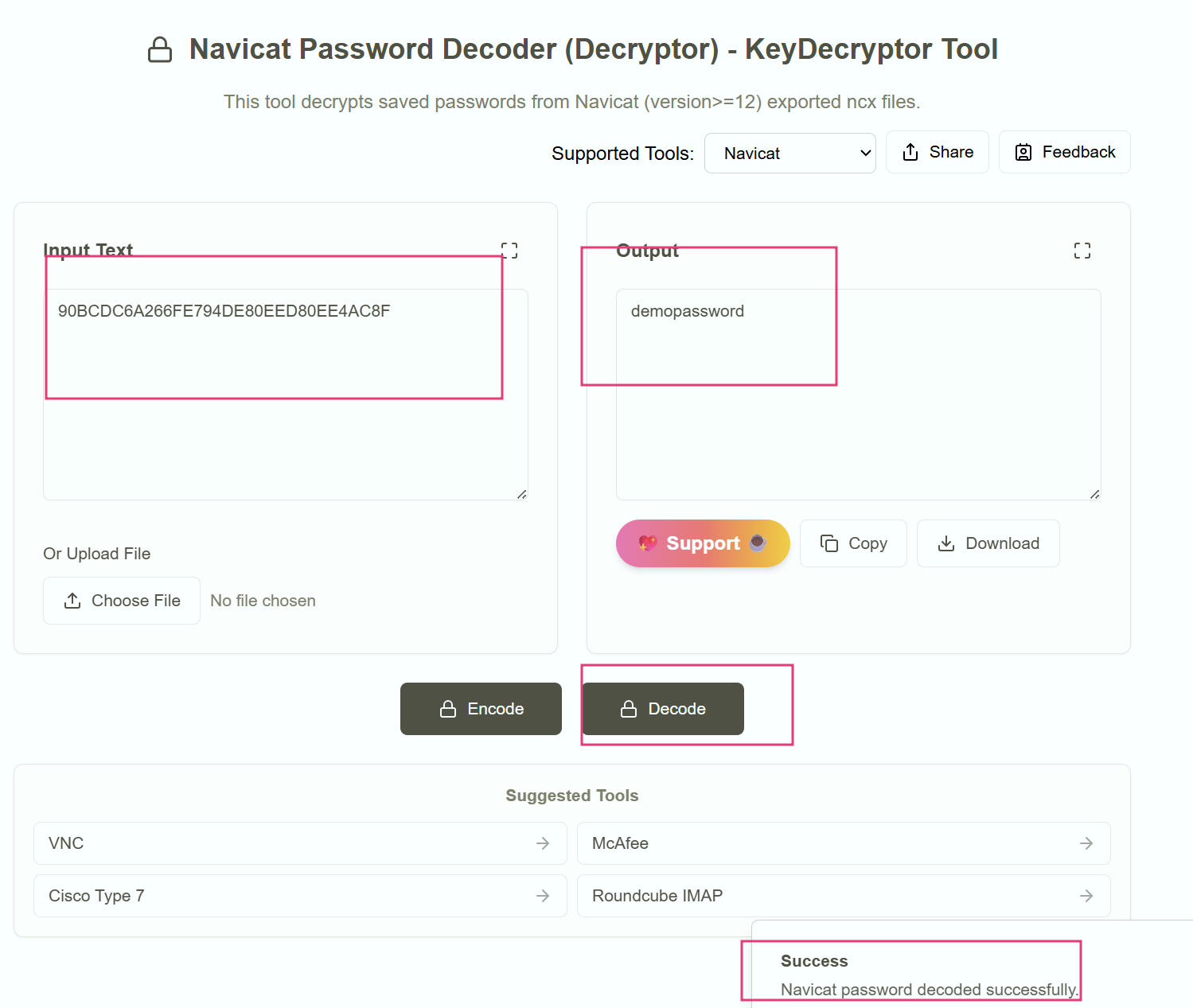
Figure 8: Online Navicat Password Recovery tool